How can I read data from .li files?
Data Logger can create compressed .LI files

Written by Paul Cracknell
Updated at January 8th, 2026
-
Moku:Go
Moku:Go General Moku:Go Arbitrary Waveform Generator Moku:Go Data Logger Moku:Go Digital Filter Box Moku:Go FIR Filter Builder Moku:Go Frequency Response Analyzer Moku:Go Logic Analyzer & Pattern Generator Moku:Go Oscilloscope & Voltmeter Moku:Go PID Controller Moku:Go Spectrum Analyzer Moku:Go Waveform Generator Moku:Go Power Supplies Moku:Go Lock-in Amplifier Moku:Go Time & Frequency Analyzer Moku:Go Laser Lock Box Moku:Go Phasemeter
-
Moku:Lab
Moku:Lab General Moku:Lab Arbitrary Waveform Generator Moku:Lab Data Logger Moku:Lab Digital Filter Box Moku:Lab FIR Filter Builder Moku:Lab Frequency Response Analyzer Moku:Lab Laser Lock Box Moku:Lab Lock-in Amplifier Moku:Lab Oscilloscope Moku:Lab Phasemeter Moku:Lab PID Controller Moku:Lab Spectrum Analyzer Moku:Lab Time & Frequency Analyzer Moku:Lab Waveform Generator Moku:Lab Logic Analyzer/Pattern Generator
-
Moku:Pro
Moku:Pro General Moku:Pro Arbitrary Waveform Generator Moku:Pro Data Logger Moku:Pro Frequency Response Analyzer Moku:Pro Oscilloscope Moku:Pro PID Controller Moku:Pro Spectrum Analyzer Moku:Pro Waveform Generator Moku:Pro Lock-in Amplifier Moku:Pro Laser Lock Box Moku:Pro Digital Filter Box Moku:Pro FIR Filter Builder Moku:Pro Phasemeter Moku:Pro Multi-instrument Mode Moku:Pro Logic Analyzer/Pattern Generator Moku:Pro Time & Frequency Analyzer
- Python API
- MATLAB API
- Arbitrary Waveform Generator
- Data Logger
- Digital Filter Box
- FIR Filter Builder
- Frequency Response Analyzer
- Laser Lock Box
- Lock-in Amplifier
- Oscilloscope
- Phasemeter
- PID Controller
- Spectrum Analyzer
- Time & Frequency Analyzer
- Waveform Generator
- Logic Analyzer & Pattern Generator
- Multi Instrument Mode
- Moku Cloud Compile
- Moku general
- LabVIEW
- mokucli
- Moku:Delta
The Data Logger can create files in a .LI format; this is a fast and compressed format.
The LI File Converter can be used to convert binary data from a .li file into plain text data in .csv (comma-separated values) format, a Python .npy file, or to a MATLAB .mat file. You can download the LI File Converter on the utilities page. The LI File Converter is also built into our desktop Apps.

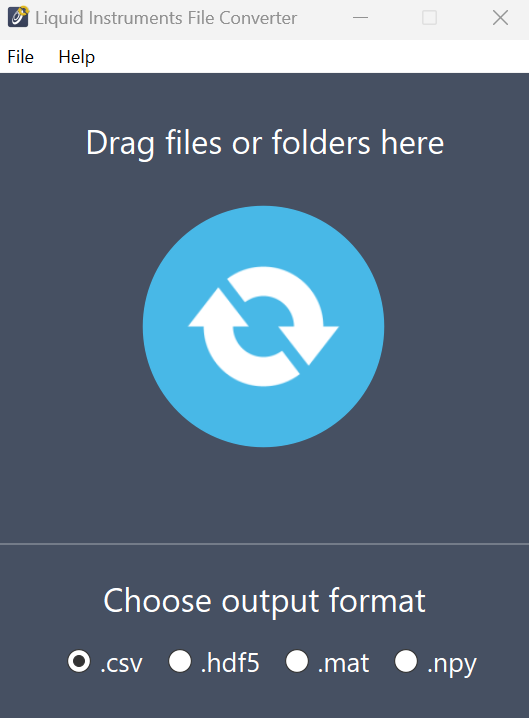
Furthermore, mokucli includes a functionality that allows you to convert .li file to other formats. For more information, please install mokucli and enter the following command in PowerShell/cmd:
mokucli convert --helpThe details of the command can be seen below:
PS C:\Users\heyan> mokucli convert --help
Usage: mokucli.exe convert [OPTIONS] SOURCE

 Convert Liquid Instruments binary data files to standard formats.

 Converts .li binary data files (up to version 4) captured by Moku devices
 into standard data formats for analysis in external tools.

 Supported output formats:
 - CSV: Comma-separated values for spreadsheet applications
 - NPY: NumPy array format for Python analysis
 - MAT: MATLAB format for MATLAB/Octave
 - HDF5: Hierarchical Data Format for scientific computing

 The converted file will be created in the same directory as the source
 file with the appropriate extension.

 NOTE: This command relies on platform-optimized extensions so may not
       work on all operating systems.

 Examples:
     mokucli convert data_capture.li
     mokucli convert measurement.li --format mat
     mokucli convert /path/to/data.li --format npy

Arguments:
  SOURCE  FILE [required]

Options:
  --format [csv|npy|mat|hdf5]  [default: csv]
  --help                       Show this message and exit.
To convert a .li file to a CSV format, please run the following command in PowerShell/cmd, replacing “test.li” to your .li file name:
mokucli convert .\test.li --format=csvThe .li file will be converted to a CSV file. To convert .li file to other formats, simply change the “csv” to the desired format name.
PS C:\Users\heyan> mokucli convert .\test.li --format=csv
[===========================================================================]
Done.